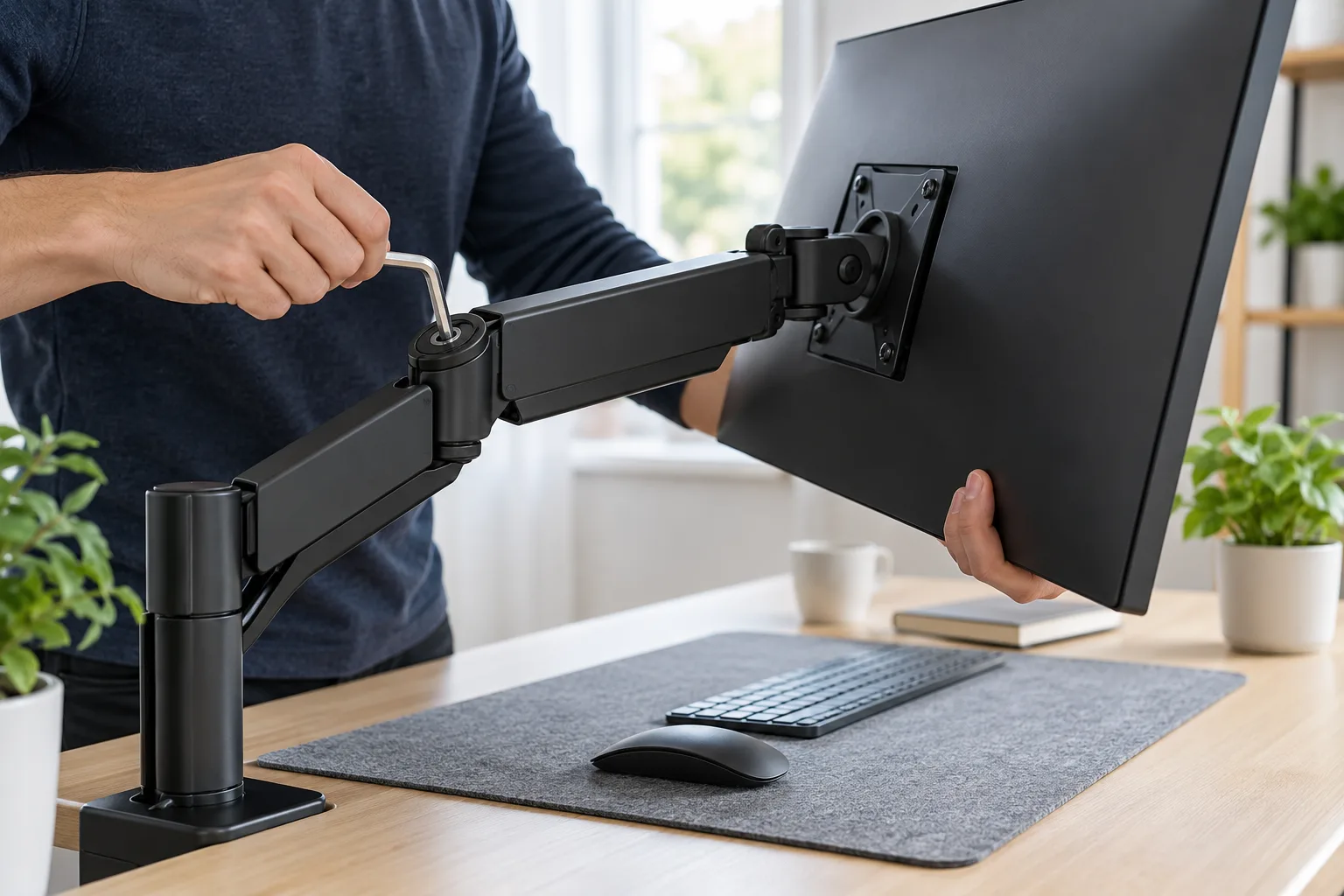
To adjust monitor arm tension, first confirm the display is within the arm’s stated weight range. Support the monitor, find the correct adjustment point in the model’s manual, and make a small change in the documented direction. There is no universal turn direction or amount: the mechanism and load range vary by arm.
1. Check the monitor and arm limits
Before turning an adjustment screw, find the monitor’s weight without its original stand and note any camera, light bar or other accessory mounted to it. Then read the exact monitor arm model label or manual. Check its supported weight range, compatible screen size, VESA pattern and whether the instructions describe tension adjustment with the monitor installed.
If the display is outside the stated range, the tension mechanism may not be able to hold it reliably. Do not compensate by forcing the adjustment beyond its stop. Choose a compatible arm or follow the manufacturer’s support route.
2. Stabilize the monitor and identify the adjustment point
Clear enough space to move the screen and ask someone to help if it is large or awkward. Keep one hand under or around the display so it cannot drop or swing. Confirm that the desk clamp and VESA connection are secure, but do not loosen any load-bearing fastener while the screen is hanging.
Find the tension point named in the manual. A gas-spring arm often has an adjustment screw near the joint, but other arms use a different design. Check for a plus/minus label, an Allen-key size and the documented direction. The Ergotron LX installation guide illustrates model-specific adjustment: follow your own arm’s manual rather than transferring its direction or steps.
3. Adjust tension in small, controlled increments
- Move the screen to a comfortable working position and keep it supported.
- Insert the specified tool fully into the adjustment point so it cannot slip.
- Turn only a small amount in the direction shown by the manual. Do not remove the screw or force it against a stop.
- Release the screen gradually while keeping a hand ready to catch it.
- Observe whether it drifts, rises or holds position. Re-support it before another small adjustment.
Do not stand underneath a suspended screen or put fingers into a pinch point. If you hear a pop, see the arm shift at its desk clamp, or find a fastener loosening, stop and support the monitor before checking the assembly instructions.
4. Test the full range and recheck clearance
When the monitor holds at the height you use, guide it slowly through the arm’s intended range. Check that it stays where placed, moves smoothly and clears the desk, wall and other screens. Repositioning should not pull cables tight or make the desk clamp rotate.
If the manual calls for a final check after adjustment, do it now. Recheck the VESA screws and clamp only using the specified method and torque guidance, if provided. Keep the hex key and model manual accessible for future changes.
5. Diagnose what an adjustment cannot fix
Tension is not a fix for a damaged spring, loose VESA plate, worn joint, bent arm or incompatible display weight. If the monitor slowly sinks even at the recommended limit, springs upward uncontrollably or will not stay level, stop using the arm and contact the manufacturer. Do not disassemble a pressurized gas spring unless the manufacturer’s service instructions specifically allow it.
For the whole desk setup, see our wobbly-desk troubleshooting guide and home-office setup guide.
Frequently asked questions
Why does my monitor arm keep drifting down?
The monitor may be heavier than the arm’s supported range, or its spring tension may be set too low. Check the exact arm model, monitor weight with its stand removed, and the manual’s adjustment procedure before turning the mechanism.
Which way do I turn the monitor arm tension screw?
There is no universal direction. The manual for the exact arm shows which direction increases or decreases tension; some mechanisms have a clear plus/minus mark. Do not infer the direction from another brand or model.
Should I remove the monitor before adjusting the arm?
Follow the arm manual. Many adjustments are designed to be made with the display mounted and supported, while a different mechanism may require unloading. Keep one hand supporting the monitor and never loosen a mount or clamp that carries its weight.
How do I know if my monitor is too heavy for the arm?
Compare the monitor’s weight without its stand and the VESA pattern with the arm’s exact specifications. Include accessories attached to the screen if the manufacturer says they count. If the display remains unstable at the stated adjustment limit, stop and use a compatible support.
Source and review note
Ergotron LX installation guide — one example of an arm-specific installation and tension-adjustment procedure. Review the manual for your exact make and model. Updated October 5, 2026.