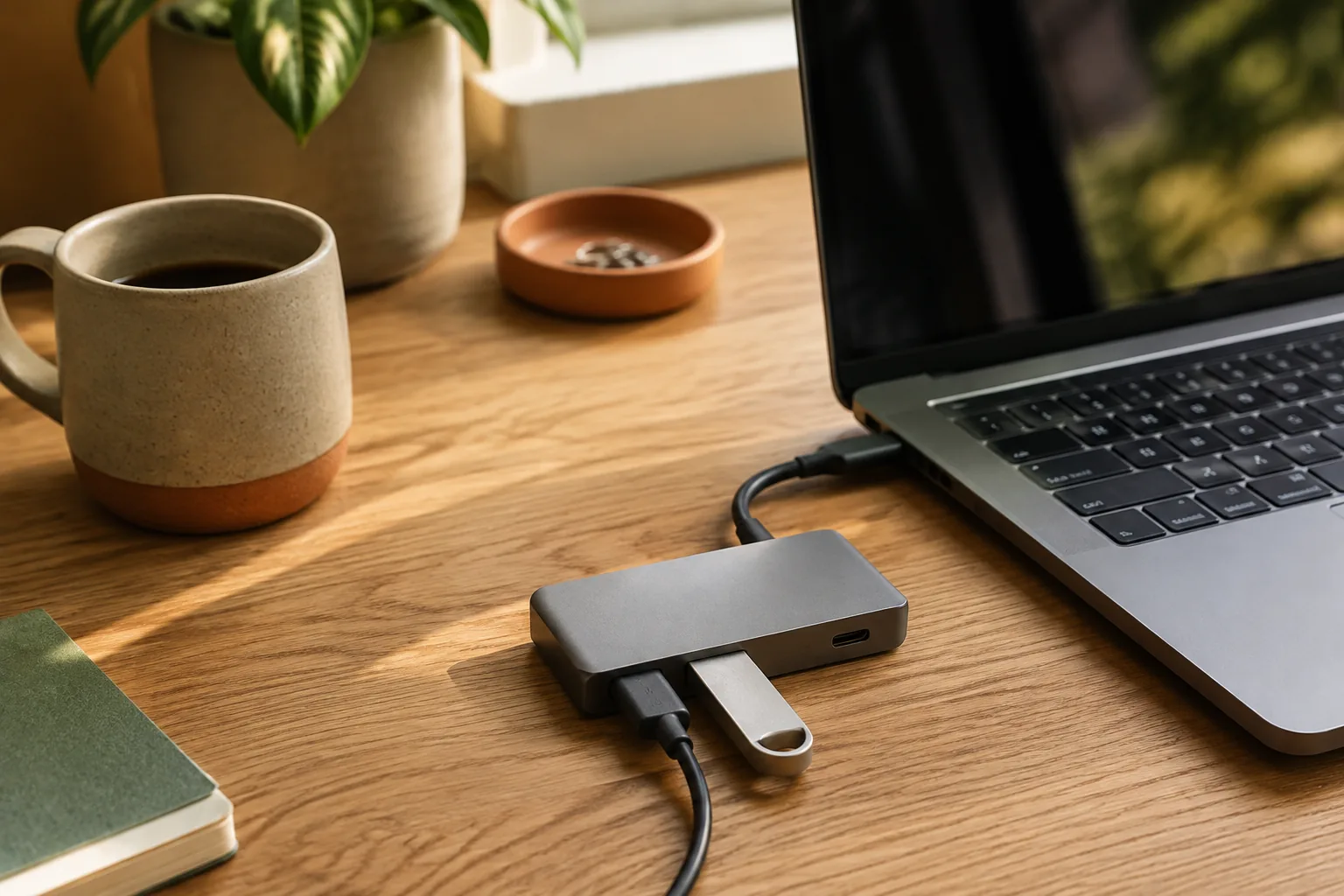
The best USB-C hub for most desks gives one cable four jobs: HDMI for one external monitor, USB-A for keyboard and mouse, power delivery pass-through for charging, and Ethernet if your Wi-Fi isn’t reliable. For a single 4K monitor at a smooth 60Hz, with Ethernet and charging pass-through, start with the UGREEN 7-in-1. If you want to choose exactly how many ports you pay for, the ORICO WB series comes in 6-, 7- and 8-in-1 versions.
Quick answer
Start with the ports you reach for every day.
Before you compare hubs, check your laptop. A hub can only pass through what the laptop’s USB-C port supports. If that port doesn’t carry video, no HDMI socket on a hub will help.
Our starting point
7-in-1 · HDMI · PD pass-through · card reader
Quick picks
- Best overall: UGREEN 7-in-1 USB-C hub, 4K60Hz HDMI, Ethernet, SD/TF and up to 100W PD.
- Best for choosing your port count: ORICO WB 6/7/8-in-1 hub with HDMI, Ethernet and SD/TF.
The two USB-C hubs worth comparing first
The ports below are what each listing states. They are not our measurements. The ORICO listing sells 6-, 7- and 8-in-1 versions, so select the exact port layout you need.
| Hub | Best for | Listed ports | Check first |
|---|---|---|---|
| UGREEN 7-in-1 (Ugreen Official Store) | One 4K monitor at 60Hz, wired and charging | 4K60Hz HDMI, RJ45, SD/TF, USB 3.0, up to 100W PD | Your laptop supports 4K60 over USB-C |
| ORICO WB 6/7/8-in-1 (Orico Official Store) | Choosing an exact port count | HDMI, RJ45, SD/TF, up to 100W PD; 6/7/8-in-1 variants | Which ports the selected variant includes |
1. UGREEN 7-in-1 USB-C hub: best overall
The UGREEN 7-in-1, sold through the Ugreen Official Store, covers the usual one-monitor desk in one cable. The listing names 4K60Hz HDMI, RJ45 Ethernet, SD and TF card readers, USB 3.0 and up to 100W power delivery pass-through. The stated 60Hz at 4K is the detail to notice: it keeps scrolling and cursor movement smooth on a 4K monitor, where many basic hubs stop at 30Hz.
Fit check: you only get 4K at 60Hz if your laptop’s USB-C port supports it too. Check the laptop’s specs. Up to 100W is the most the hub accepts, not what reaches the laptop: the hub keeps a share, so match it to your charger and your laptop’s real power needs.
UGREEN 7-in-1 USB-C hub: 4K60Hz HDMI, RJ45, SD/TF, USB 3.0, up to 100W PD (per listing).
2. ORICO WB 6/7/8-in-1 USB-C hub: best for choosing your port count
The ORICO WB series, sold through the Orico Official Store, comes as a 6-, 7- or 8-in-1 hub. The listing names HDMI, RJ45 Ethernet, SD/TF card readers and up to 100W power delivery pass-through, with the exact port mix depending on the version. That lets you match the hub to your desk instead of paying for sockets you won’t use.
Fit check: the variant picker matters more than the title. Confirm which USB ports, which card slots and which HDMI resolution and refresh rate come with the 6-, 7- or 8-in-1 version you select.
ORICO WB 6/7/8-in-1 USB-C hub: HDMI, RJ45, SD/TF, up to 100W PD; 6/7/8-in-1 variants (per listing).
How to choose a USB-C hub: 5 checks
1. Check your laptop’s USB-C port first
Look in the laptop’s specs for DisplayPort Alt Mode, Thunderbolt or USB4 on the port you’ll use. Those carry video. A data-only port won’t output to HDMI through any hub. On MacBooks, the USB-C/Thunderbolt ports generally support video, but check how many external displays your model supports.
2. Treat power delivery as pass-through
PD lets your charger power the laptop through the hub. It doesn’t add wattage, and the hub keeps a share for itself. A 100W-input hub with a 65W charger still delivers less than 65W to the laptop.
3. Read HDMI specs with the refresh rate
“4K” alone is incomplete. 4K at 30Hz is usable for documents but feels sluggish when you move the cursor or scroll. For a smooth single 4K monitor, look for 4K at 60Hz, and check that your laptop supports it too.
4. Add Ethernet only if it solves a real problem
Wired internet helps on unreliable Wi-Fi, on calls and with large transfers. If your Wi-Fi is fine, skip it for a smaller hub.
5. Separate fast ports from convenience ports
USB-A is fine for a keyboard, mouse and receiver. Put drives on the fastest port the listing names, and note that some USB-C sockets on hubs are power-only.
Which USB-C hub fits your setup?
| Setup | Pick | Why |
|---|---|---|
| Laptop + one 4K monitor + keyboard and mouse | UGREEN 7-in-1 | 4K60Hz HDMI listed, plus Ethernet and PD |
| All-day wired workstation, charging through the hub | UGREEN 7-in-1 | Ethernet plus up to 100W PD pass-through |
| You know exactly which ports you need | ORICO WB 6/7/8-in-1 | Choose the 6-, 7- or 8-in-1 version |
| Two external monitors | Check the laptop first | Two screens depend on the laptop’s display support, not just on HDMI sockets |
Two monitors? Many laptops can’t drive two independent screens through one USB-C port, and macOS on many models won’t extend to two displays through a basic hub. Both hubs here are aimed at one-monitor desks. For a switchable two-screen setup, see our KVM switch for dual monitors guide.
Tidy finish: put the hub where its cable reaches the laptop without strain, and run the rest behind the desk. Our desk cable management guide shows how. A laptop stand keeps the laptop’s ports easy to reach.
USB-C hub mistakes worth avoiding
- Buying by port count. Ten ports don’t help if the cable is too short or the ports you need are missing.
- Assuming every USB-C port carries video. Check the laptop first. It’s the most common reason a hub “doesn’t work”.
- Underpowering the laptop. Charger wattage minus hub overhead is what the laptop gets.
- Hiding a busy hub. Hubs get warm. Keep them reachable and ventilated.
USB-C hub FAQ
What is the best USB-C hub for most desks?
For a laptop and one monitor, a hub with HDMI, USB-A, USB-C data and power delivery pass-through. Add Ethernet if Wi-Fi is unreliable. The UGREEN 7-in-1 is the all-round pick here, and the ORICO WB series is the pick when you want to choose a 6-, 7- or 8-in-1 layout.
Can a USB-C hub charge a laptop?
Yes, if the hub has PD pass-through and the laptop accepts charging through that port. The laptop gets less than the charger’s rating because the hub uses some power. Both hubs here list up to 100W PD input.
What should I look for in a USB-C hub with HDMI?
The supported resolution and refresh rate (4K at 60Hz vs 30Hz), whether your laptop’s port carries video, the PD input limit, and the cable length and port positions.
Do USB-C hubs work with dual monitors?
Some do, but two video sockets don’t guarantee two independent screens. It depends on the laptop, the operating system and the hub’s display technology. Both hubs here are aimed at one external monitor.
What is the best USB-C hub for a MacBook Pro?
One with HDMI at the refresh rate you need, PD pass-through that matches your charger, and the ports you actually use. Check how many external displays your MacBook model supports before choosing a multi-display setup.
Is a bigger hub or dock always better?
No. A larger hub suits a fixed desk that would otherwise need several adapters. For a laptop that moves between rooms, a smaller hub is quicker to reconnect and easier to carry.
The bottom line
Check your laptop’s USB-C port, then pick the smallest hub that covers your daily ports. The UGREEN 7-in-1 is the best overall pick, with 4K60Hz HDMI, Ethernet and up to 100W PD listed. The ORICO WB series lets you pick a 6-, 7- or 8-in-1 layout. Next, see our guides to monitor arms and monitor light bars.
The practical starting point
Pick the configuration. Then check the listing.
Measure first, then compare the two picks above. Confirm the exact variant and the listed size or fit details before you order; prices and availability are set by the retailer and can change.
Return to the picks