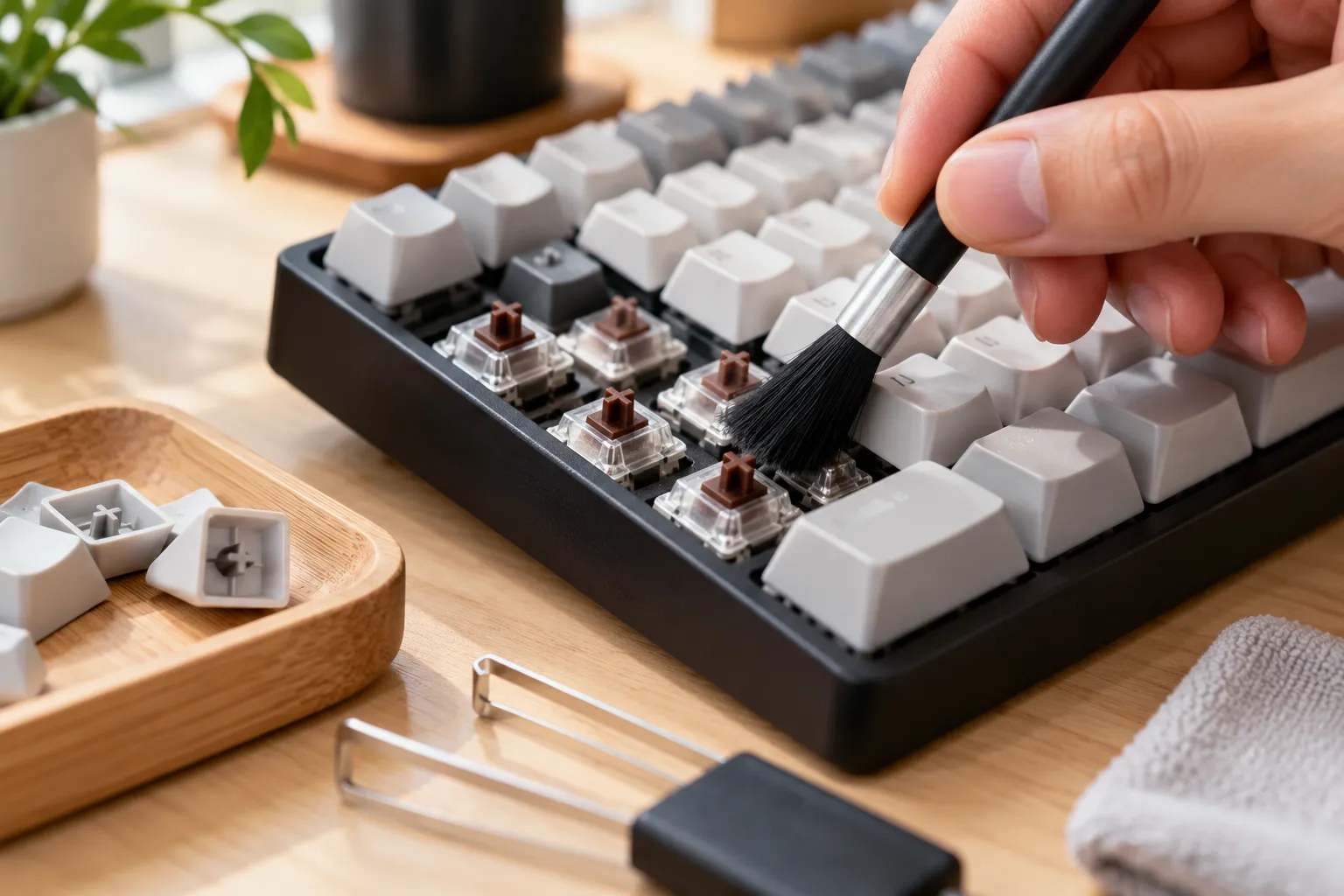
For routine cleaning, turn the keyboard off, disconnect it, remove loose dust around the keys, and use a soft brush or short bursts of air. Remove keycaps only if the keyboard supports it. A hot-swap switch can be pulled only with the correct tool and only when the model’s instructions allow it; a soldered switch is not a removable cleaning part. Keep liquid out of the switch and keyboard.
Identify the keyboard before cleaning
Check the manual or product page for the keyboard layout and switch type. “Mechanical keyboard” does not mean every keycap or switch comes out the same way. Some low-profile switches use different keycaps; some boards have soldered switches, and some have a hot-swap socket. If you cannot confirm the type, clean around the switch instead of pulling it.
Take a photo of the layout before removing keycaps. This makes it easier to return them to the right positions. If the keyboard is under warranty, check its care guidance before disassembly.
Routine cleaning, step by step
- Disconnect power. Unplug a wired keyboard. Turn off a wireless one and remove replaceable batteries if the maker instructs you to.
- Turn it over carefully. Hold it over a bin and gently shake out crumbs. Do not strike it against a table.
- Clear loose debris. Use a hand blower, a soft brush, or compressed air according to its label. If using a compressed-air can, keep it upright and use brief bursts in a ventilated space.
- Remove compatible keycaps. Use a keycap puller and pull straight up with steady pressure. Do not pry a stabilized spacebar or a fragile low-profile cap without checking its instructions.
- Brush around the switch. Sweep debris away from the stem and housing. Avoid pressing the stem sideways or forcing particles down into the housing.
- Wipe the keycaps separately. Use a lightly damp lint-free cloth. Do not spray cleaner onto the keyboard. Let keycaps dry fully before reinstalling them.
- Reassemble and test. Confirm the caps sit straight, then reconnect the board and check the affected keys.
Can I remove and wash the switches?
Only a compatible hot-swap keyboard allows the switch itself to be pulled without desoldering, and the manufacturer’s process should control. For ordinary dust, removing the switch is usually unnecessary. If a switch is sticky after a spill, power the keyboard down immediately. Do not plug it back in to “test” while moisture may remain. Liquid contamination may need professional repair or a replacement switch; cleaning the exposed top cannot guarantee that liquid has not reached the circuit board.
Do not pour alcohol, water, contact cleaner, or lubricant into a switch. Products and materials vary, and a solvent that appears to evaporate can still damage plastic, remove factory lubricant, or spread residue. Follow the keyboard or switch maker’s care advice.
If a key still does not register
After the keyboard is dry and reassembled, test the key in another app or on another device if practical. If the keycap is the issue, reseat it gently. If a confirmed hot-swap board has one faulty switch, use the board maker’s replacement procedure. For a soldered board, damaged socket, or spilled liquid, do not pry or heat the board unless you have the right repair skills.
Sources
- Logitech: How to Clean Your Keyboard — power isolation, debris removal, keycap cleaning and solvents to avoid.
- Logitech: Keycap Replacement Guide — model compatibility and careful keycap removal.
Keyboard switch cleaning FAQ
Can I clean a keyboard switch with a cotton swab?
A dry, soft swab can remove surface dust around a switch, but loose fibers may catch on small parts. A soft brush is easier to control. Keep liquids away from the switch unless the manufacturer gives a specific procedure.
Do I need to remove every keycap?
No. For a small dusty area, remove only the compatible caps needed to reach it. Routine brushing can often clear loose debris without full disassembly.
Can compressed air damage a keyboard?
Use it only as directed, with short bursts and the can upright. Excessive pressure, liquid propellant, or spraying too close can create problems; a hand blower and soft brush offer gentler control.
How often should I clean keyboard switches?
There is no fixed interval. Clean when visible dust or debris builds up, and use a light routine more often than a full teardown.
This is an informational care guide. Follow the cleaning instructions for your exact keyboard and switch, especially before removing a keycap or opening a case.