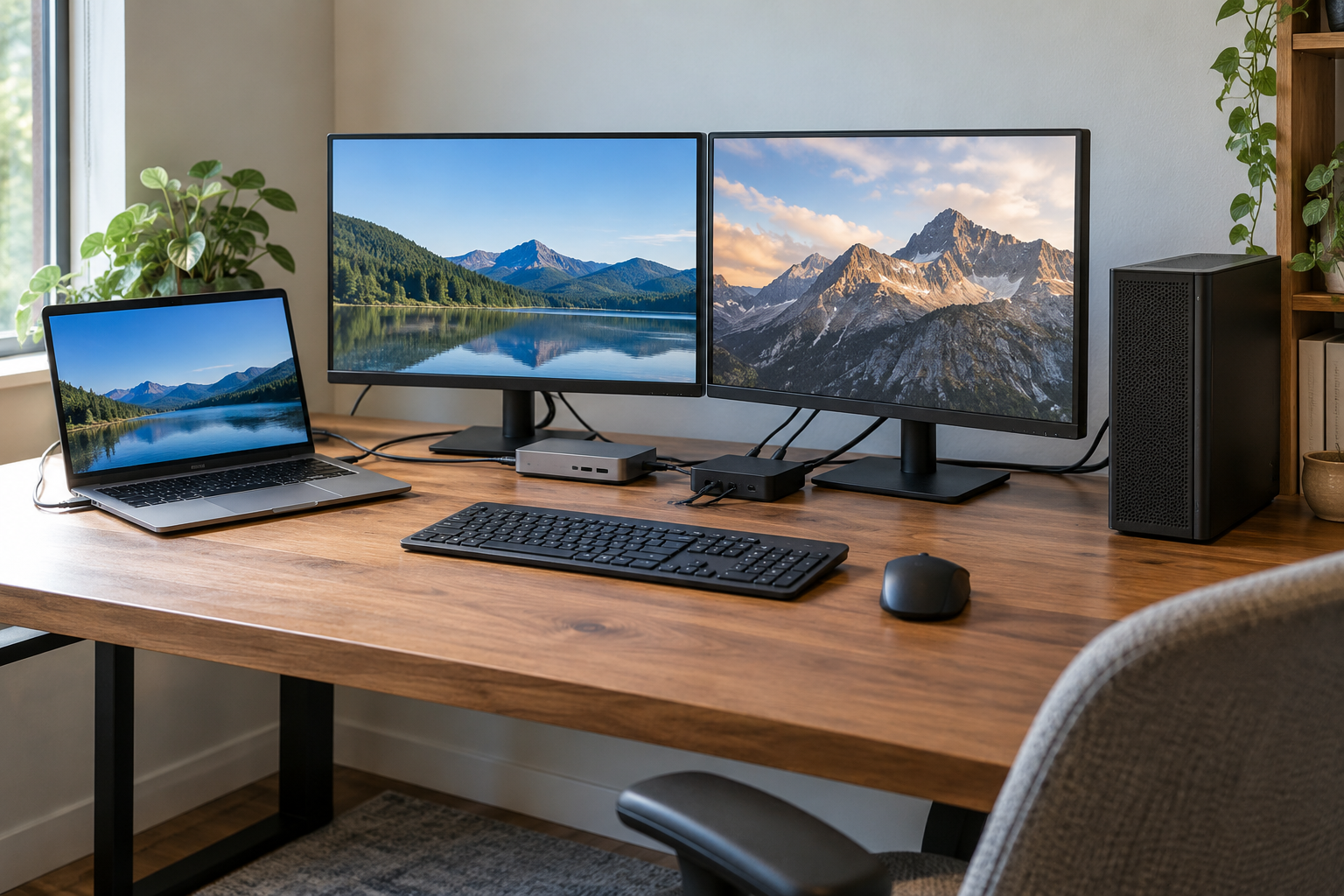
The short answer to KVM switch vs docking station is that they solve different problems. A docking station gives one computer more connections for monitors, USB accessories, networking, and sometimes charging. A KVM switch lets you use one keyboard, mouse, and supported display setup with more than one computer, then switch control between them. Some products combine both jobs, but a regular dock and a regular KVM are not interchangeable.
Start with the number of computers you use at the desk. If one laptop needs a simpler one-cable connection, look at a dock. If two or more computers must share peripherals, look at a KVM. Then check the exact display, USB, and charging limits of each model before buying.
KVM switch vs docking station at a glance
| What you need | Docking station | KVM switch |
|---|---|---|
| Main job | Add ports and desk connections to a host computer | Share supported peripherals between two or more computers |
| Typical computer count | One active computer connected to the dock | Multiple computers connected as selectable hosts |
| Switching between computers | Usually requires unplugging or a separate switch | Select another connected computer with a button or supported hotkey |
| Monitors | Expands video connections within the computer and dock’s limits | Routes display inputs from the selected computer to shared monitors |
| Keyboard, mouse, USB | Adds ports for one host | Shares connected USB devices with the selected host; check USB device and port support |
| Ethernet | Common on many docks, but not universal | Usually requires a dock or separate network adapter unless the KVM includes Ethernet |
| Charging | Many USB-C docks provide Power Delivery, but wattage and host support vary | Many basic KVMs do not charge computers; a hybrid KVM dock may provide specified power to one or more hosts |
| Software and OS | Depends on the dock’s display technology and the computer; DisplayLink requires compatible software | Basic switching may be hardware-controlled; hotkey utilities and hybrid display functions can have OS requirements |
| Best fit | A laptop that needs a convenient desk connection | A desk where people switch between computers without moving peripherals |
These are product categories, not guarantees about every box. A dock may have more than one host port but only one active host. A KVM may switch video and USB but have no Ethernet, card reader, or laptop charging. Read the model’s host diagram and specifications, not just the words “USB-C” or “dual monitor.”
Choose by the computers on your desk
One laptop and one set of desk accessories
A dock is usually the simpler choice when you return to one laptop and want to connect monitors, keyboard, mouse, storage, Ethernet, or power through a dock. Confirm that your laptop’s USB-C or Thunderbolt port supports the features you need. A USB-C connector by itself does not promise video output, a particular data speed, or laptop charging.
Two desktop computers sharing monitors and input devices
A KVM is the more direct fit when both computers stay at the desk and you want to switch the same keyboard, mouse, and compatible display inputs between them. Count the monitor inputs and computer inputs on the KVM. If you want two independent extended displays from either host, the KVM must support the relevant number and type of video paths; two video sockets on a product do not prove that every computer can drive both screens at your target resolution and refresh rate.
One laptop and one desktop
This can work with a KVM if the laptop and desktop each provide compatible video and USB connections. You might keep a dock for the laptop’s other ports and use the KVM for the shared monitor and USB path. That arrangement adds another device and more connections, so compare it with a hybrid KVM dock that explicitly supports your two host types. Check whether the laptop’s USB-C connection carries video and whether the dock switches both video and USB to the same host.
Two laptops
If both laptops should share the same displays and desk accessories, compare a dual-host KVM dock with a dock plus a separate KVM. A hybrid product can save space, but confirm the number of host connections, monitor outputs, switching method, operating-system support, and Power Delivery for each host. Some models give the active laptop more charging power than the other connected laptop; others do not charge both. Do not assume the word “dock” means both computers charge simultaneously.
Can you use a dock and KVM together?
Yes, if their signal paths are compatible. Think of video and USB as separate routes: video from each computer must reach the KVM’s matching input, while keyboard and mouse connect to the KVM’s shared USB side. A dock can supply a laptop with the needed video and USB connections before those signals reach the switch. The exact wiring depends on the devices, so use their port diagrams and manuals rather than copying a generic cable map.
Combining devices is useful when you already own a suitable dock or need its Ethernet, audio, or extra USB ports. It can also introduce more adapters and compatibility points. If a single hybrid unit covers both hosts and all required ports, it may be easier to manage; if not, separate devices can be more flexible.
Check display compatibility before you buy
Write down each monitor’s input, resolution, and refresh rate, then check the complete path from each computer through any dock or KVM. Every link has to support the target signal. HDMI, DisplayPort, USB-C DisplayPort Alt Mode, and Thunderbolt ports can have different capabilities even when connectors look similar.
DisplayPort MST uses a compatible source and display path to carry multiple display streams. Support depends on the computer, operating system, dock, and display arrangement. Do not assume an MST hub will give a Mac the same native extended-display behavior it gives a Windows PC.
DisplayLink uses USB graphics software and compatible hardware to add displays through USB. It can be helpful when a computer’s native display outputs do not meet a desk’s needs, but it introduces a software and operating-system dependency. Check the dock maker’s model-specific instructions and Synaptics’ current driver support before choosing it. A DisplayLink product is not the same as a native Thunderbolt or DisplayPort output.
Mac display limits depend on the exact model, chip, resolution, refresh rate, and connection combination. As examples in Apple’s current support guidance, MacBook Pro models with M4 or M4 Pro support up to two external displays; M4 Max models support up to four; and M5 Pro models support up to three. Those maximums come with specific resolution and refresh-rate configurations. Check Apple’s current display-support page for your exact Mac before selecting a dock or KVM; closing the lid does not raise every model’s limit.
Check USB-C data and charging separately
USB-C describes a connector shape, not one universal feature set. For the laptop connection, verify three things separately:
- Video: Does this exact port output video over DisplayPort Alt Mode, Thunderbolt, or USB4, and does the dock accept that signal?
- Data: Does the port and dock support the data speed and USB devices you plan to use? A keyboard and mouse need little bandwidth; an external SSD needs more.
- Power: Does the dock provide Power Delivery, and is its delivered wattage suitable for your laptop? If two laptops attach to a hybrid KVM dock, confirm how power is divided between them.
Also check whether the KVM switches all desired USB ports or only designated keyboard-and-mouse ports. Some USB ports switch with the selected computer, while others may be shared differently or remain tied to one host. Consult the port diagram and manual.
A quick keep-or-buy checklist
- One computer, more ports: Start with a dock.
- Two computers, one keyboard and mouse: Start with a KVM.
- Two computers and a one-cable laptop connection: Compare hybrid KVM docks against a dock-plus-KVM combination.
- Two monitors: Verify the supported display count, resolution, refresh rate, and operating-system behavior from each host.
- A Mac: Look up that specific model’s native external-display limit; identify whether the proposed dock uses DisplayLink.
- Laptop charging: Check the stated Power Delivery output for each host connection, not just the power adapter rating.
- A storage drive or specialty accessory: Check which USB ports switch and whether they provide the needed data rate.
For a wiring walkthrough after you have chosen a device, see our dual-monitor KVM setup guide. If you are comparing display-sharing models, browse the dual-monitor KVM selection guide. A dock can add everyday connections too; our USB-C hub guide covers that adjacent category.
Frequently asked questions
Is a docking station the same as a KVM switch?
No. A dock expands connections for a computer. A KVM switches supported peripherals between multiple computers. A hybrid KVM dock combines those roles, but its host, display, USB, and charging limits are model-specific.
Which is better: a KVM switch or a docking station?
Neither is better for every desk. Choose a dock for convenient connections to one computer; choose a KVM when multiple computers need to share peripherals. For a laptop that also needs many ports, compare a hybrid product or a dock and KVM together.
Can a docking station switch between two computers?
Only if it is designed to do so. Many docks connect to one host at a time. A dual-host KVM dock or a separate KVM provides the switching function; check the product documentation for how many computers it supports and what switches with them.
Will a KVM switch charge my laptop?
Not necessarily. Basic KVM switches generally focus on switching video and USB. A KVM dock may support USB-C Power Delivery, but confirm the output and whether it applies to one or both connected computers.
Can a KVM give my Mac more external displays?
A KVM selects and routes display signals; it does not automatically increase the Mac’s native display limit. A compatible DisplayLink dock may add USB graphics displays with software, while native support depends on the exact Mac model and display configuration.
Sources checked October 6, 2026
- StarTech.com 129N dual-laptop KVM dock datasheet — example of a hybrid device and its model-specific display, host, and power specifications.
- Apple Support: How many displays can be connected to MacBook Pro — display counts and resolution/refresh configurations by model.
- Apple Support: MacBook Pro display specifications — example M4 model specifications.
- Synaptics: DisplayLink graphics and current macOS downloads — software-backed USB display support and current driver compatibility.
- StarTech.com docking stations — product-category reference; individual model specs still govern.