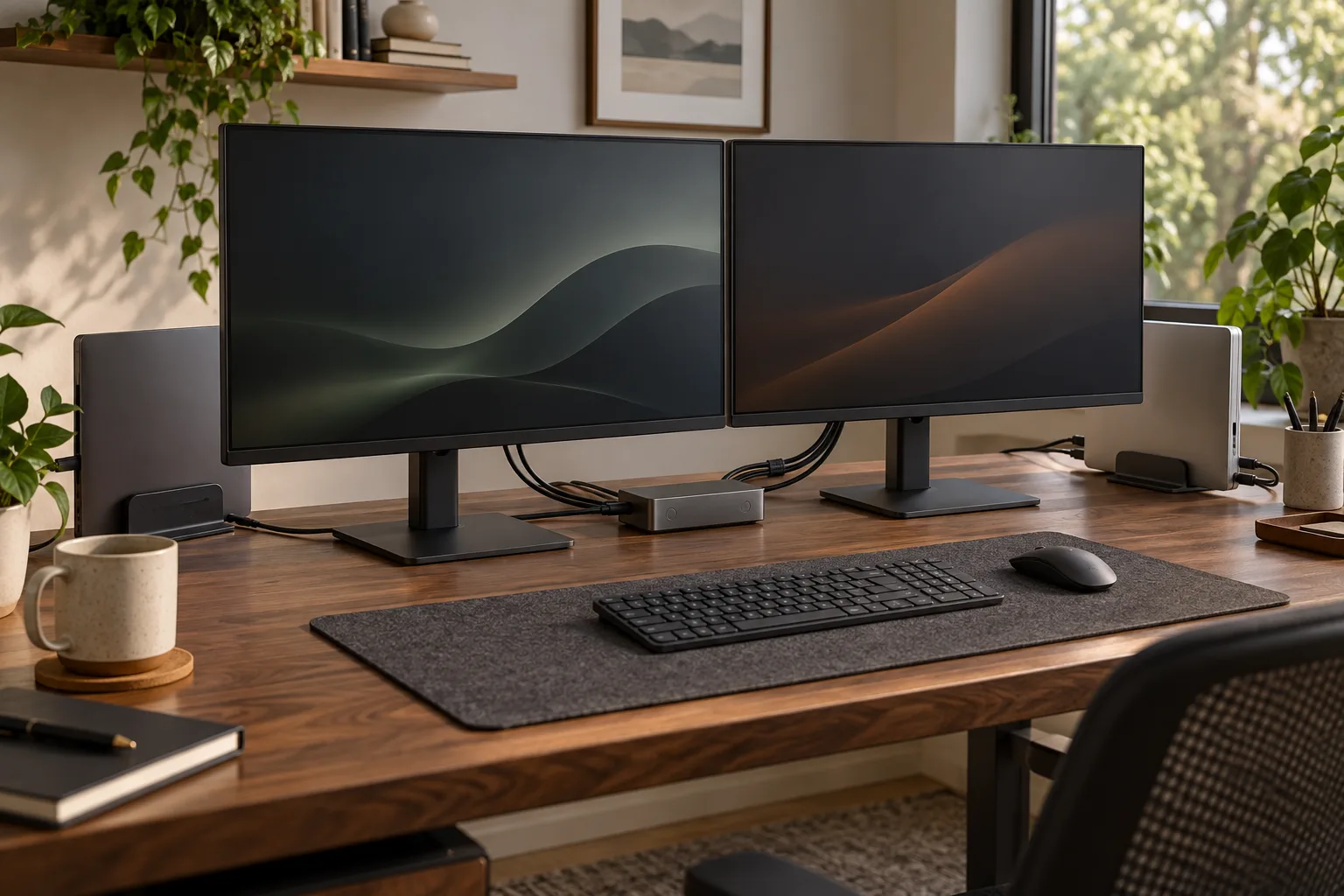
To set up a dual-monitor KVM switch, connect each computer to the KVM for the video inputs it supports, connect the KVM outputs to the two monitors, attach the shared keyboard and mouse to the KVM USB ports, then test one computer at a time. The exact HDMI, DisplayPort, USB and power requirements vary by KVM, computer and monitor, so use the unit’s current diagram as the source of truth.
Quick answer
Draw the paths before you connect the cables.
To set up a dual-monitor KVM switch, connect each computer to the KVM for the video inputs it supports, connect the KVM outputs to the two monitors, attach the shared keyboard and mouse to the KVM USB ports, then test one computer at a time. The exact HDMI, DisplayPort, USB and power requirements vary by KVM, computer and monitor, so use the unit’s current diagram as the source of truth.
Start with
fit · stability · daily use
Map two computers, two monitors and one input zone
Before opening the cable drawer, write down the devices you are actually switching. A basic dual monitor KVM setup can include two computers, two monitors, one keyboard, one mouse, audio, a webcam and a network connection. Not every KVM switches every signal. Decide which devices must follow the active computer and which can remain independent.
Label the computers A and B, the monitors 1 and 2, and every cable by both ends. Check the KVM manual for the number of computers, supported video connectors, maximum resolution and refresh rate, USB data ports, power input and switching method. A product photo cannot confirm whether your exact laptop, dock and monitor combination will work.
Video tells the monitors what to display. USB tells the shared keyboard and mouse which computer to control. Power and charging are separate questions; do not assume a KVM can power a laptop just because it carries a video signal.
Connect the video path without guessing
Start with the monitors turned off. Connect the KVM’s output 1 to monitor 1 and output 2 to monitor 2 using the connector and cable type shown in the instructions. Then connect computer A to the KVM’s input A and computer B to input B. If a laptop needs a dock or adapter, put that device in the drawing and confirm which ports it actually exposes.
Keep the cable lengths reasonable and avoid sharp bends at a laptop hinge or monitor arm. A cable can be physically compatible but still fail at the resolution or refresh rate you want. If the KVM supports multiple output modes, select the mode the manual recommends before troubleshooting the computer.
Connect the shared keyboard, mouse and accessories
Plug the keyboard and mouse into the KVM ports marked for USB peripherals, not into a charging-only port. Connect the KVM’s upstream USB cable for computer A to the correct computer-A port, then repeat for computer B. If the KVM needs external power, connect it as instructed and give the switch a moment to enumerate before pressing the selector.
Test the smallest useful setup first: two monitors, one keyboard, one mouse and the two computers. Add a webcam, microphone, storage device or audio cable only after the basic switch works. High-power USB devices can exceed what the switch or computer port is designed to provide, and some accessories need to stay connected directly to a host.
Test the KVM one computer at a time
- Turn on both monitors and select the inputs connected to the KVM outputs.
- Start computer A with the KVM on input A. Confirm that both monitors show the intended desktop and that the keyboard and mouse respond.
- Switch to computer B using the physical button, wired remote or hotkey supported by the unit. Wait for the displays to renegotiate, then test both monitors and the shared USB devices.
- Switch back to A and check that the display arrangement, cursor movement and keyboard shortcuts return without an unexpected resolution change.
- Wake each computer from sleep and restart it once. Some display handshakes behave differently during boot, wake and hot switching.
Save the working cable map in a note under the desk. Record the input order, monitor inputs and any hotkey that you use. This makes the next change deliberate instead of turning troubleshooting into a cable hunt.
Fix the common dual-monitor KVM problems
One monitor is blank
Confirm that the monitor is on the right input, the KVM output is connected to the matching monitor and the selected computer supports that output. Test the monitor and cable directly with one computer if possible. If the direct path works but the KVM path does not, check the KVM’s supported resolution, refresh rate, power and EDID or display-emulation settings.
The picture flashes or returns slowly
Give the switch time to renegotiate, then try the recommended power-up order: monitors, KVM, computers, or the order in the manual. Remove extra adapters and accessories while testing. A marginal cable, a dock that sleeps, or a mode beyond the switch’s limits can look like an intermittent fault.
The keyboard or mouse stops responding
Check the upstream USB cables and the KVM’s peripheral ports, then test a simple wired keyboard or mouse. Some hotkeys are intercepted by an operating system or another utility. If only one accessory fails, return to the minimal setup and add devices one by one.
Audio, webcam or storage does not follow the switch
Confirm that the KVM is designed to switch that signal. If it is not, leave the accessory on a host, use a separate switch or accept that it remains independent. Do not repeatedly unplug a storage device while it is writing data.
Reference points
- How to choose a KVM switch for two monitors — compare the requirements before buying.
- How to set up a home office — plan the full desk geometry.
- DeskSetup Lab method — confirm the daily workflow, not only the feature list.
Dual-monitor KVM setup FAQ
Can one KVM switch two monitors?
Some KVMs are designed for dual-monitor output, while others switch one display or use a different topology. Check the exact model’s output count, connector types, resolution and refresh-rate limits before assuming it will drive both monitors.
Do both computers need two video cables?
Usually each computer needs one cable per monitor output that you want the KVM to switch, but the exact arrangement depends on the KVM and the computers. Draw the manual’s diagram with your actual ports before connecting anything.
Why does my KVM show only one monitor?
Check the monitor input, KVM output, computer output, cable, adapter and supported display mode. Test the monitor directly, then inspect power and EDID or display-emulation settings if the direct path works.
Will a KVM charge my laptop?
Do not assume so. Video switching, USB data and USB Power Delivery are separate capabilities. Treat charging as available only when the KVM and computer instructions explicitly support the required power path.